Where does your team go to find out how things are done in your business?
If the honest answer is “it depends on who you ask,” you’re not alone. Most business owners I work with have the same problem. Their processes are scattered across Google Drive folders, Dropbox accounts, someone’s desktop, and a healthy dose of tribal knowledge that lives in people’s heads.
So when someone asks “should I use Google Drive or Dropbox for my business documents?” they’re usually asking a deeper question. They want to know: where should I store my systems so my team can actually find and follow them?
That’s a great question. And the answer might surprise you. Both Google Drive and Dropbox are solid file storage tools. But neither one was designed to manage your business systems. Let me explain what I mean.
In this guide:
- What Google Drive and Dropbox actually do
- Google Drive vs Dropbox: a feature-by-feature comparison
- Why business owners use file storage for their SOPs
- The real problem: file storage was never built for SOPs
- What to look for in systems management software
- When Google Drive or Dropbox still makes sense
- Common mistakes when choosing where to store your systems
- Frequently asked questions
What Google Drive and Dropbox actually do
Before we compare them, let’s be clear about what these tools are. Both Google Drive and Dropbox are cloud-based file storage and sharing platforms. They were designed to replace the old model of saving files locally on your computer and emailing attachments back and forth.
Google Drive is part of Google Workspace (formerly G Suite). It gives you cloud storage alongside Google’s own document editors: Docs, Sheets, Slides, and Forms. If your team already uses Gmail, you’re likely already in the Google ecosystem.
Dropbox started as a file syncing service and has evolved into a broader collaboration platform. It lets you store any file type, sync across devices, and share folders with your team. Dropbox Paper adds basic document editing, though it’s not as fully featured as Google’s suite.
Both tools solve a real problem. They give your team a shared space to store and access files from anywhere. That’s genuinely useful. The question is whether “a shared space for files” is the same thing as “a home for your business systems.” It isn’t, and I’ll explain why shortly.
Google Drive vs Dropbox: a feature-by-feature comparison
If you’re choosing between Google Drive or Dropbox purely for file storage, here’s how they compare across the areas that matter most to business owners.
1. Storage and pricing
Google Drive offers 15 GB free across your Google account. Business plans through Google Workspace start at around $7 per user per month for 30 GB, scaling up to 5 TB per user on higher plans. Dropbox gives you 2 GB free on the personal plan. Business plans start at around $15 per user per month for 9 TB of shared storage, with the Standard plan offering 5 TB for the team.
Google tends to be more affordable per user for smaller teams. Dropbox can be more cost-effective if you need large amounts of shared storage without paying per user at the higher tiers.
2. Collaboration and real-time editing
This is where Google pulls ahead. Google Docs, Sheets, and Slides allow real-time co-editing with multiple people in the same document at the same time. Commenting, suggesting changes, and version history are all built in. It’s seamless if your team works in Google’s native formats.
Dropbox has Dropbox Paper for collaborative documents, but it’s more limited. For most other file types, Dropbox syncs the file rather than allowing simultaneous editing. You can view and comment on files through the web interface, but the collaboration isn’t as deep as Google’s.
3. Search and file organisation
Google’s search is powerful. You can search within documents, find files by type, and filter by date or owner. It also uses AI to surface relevant files based on your activity. However, Google Drive’s folder structure can get messy quickly. Without discipline, you end up with files in multiple locations and shared drives that nobody maintains.
Dropbox has solid search as well, including the ability to search within files and images using OCR. Its folder structure is more traditional and feels more familiar to people who grew up organising files on a desktop. But it faces the same fundamental problem: the more files you add, the harder it gets to find what you need.
4. Integrations and ecosystem
Google Drive integrates tightly with the entire Google ecosystem: Gmail, Calendar, Meet, Chat, and dozens of third-party apps. If your business runs on Google, Drive is the natural choice for file storage.
Dropbox integrates with a wide range of tools including Slack, Zoom, Microsoft Office, and Trello. It’s more platform-agnostic, which can be an advantage if your team uses a mix of tools rather than committing to one ecosystem.
5. Security and permissions
Both platforms offer enterprise-grade security with encryption, two-factor authentication, and admin controls. Google Workspace gives granular sharing controls and data loss prevention on higher plans. Dropbox Business offers advanced sharing permissions, device approval, and remote wipe capabilities.
For most small businesses, both are more than adequate. The bigger security risk isn’t the platform itself. It’s having your important business documentation scattered across personal accounts and shared folders with no clear ownership.
6. Offline access and sync
Dropbox has historically been stronger at offline file syncing. Its desktop app keeps files available locally and syncs changes when you’re back online. Smart Sync lets you see all files without downloading them, saving disk space.
Google Drive’s desktop app (Drive for Desktop) has improved significantly. You can mark files for offline access and stream files on demand. But if your team frequently works offline, Dropbox still has a slight edge.
Google Drive strengths
- Best-in-class real-time collaboration
- Tight Google Workspace integration
- More affordable per user for small teams
- Powerful search within documents
Dropbox strengths
- Superior offline sync and file management
- Platform-agnostic integrations
- More generous shared storage on business plans
- Familiar folder-based organisation
Why business owners use Google Drive or Dropbox for their SOPs
Here’s what usually happens. A business owner decides it’s time to document their processes. Maybe a key team member just left and took all the knowledge with them. Maybe they’ve read about standard operating procedures and know they need to start writing things down.
So they open Google Drive. They create a folder called “SOPs” or “Procedures” or “How We Do Things.” They start typing up their first process in a Google Doc. It feels productive. It feels like progress.
Then reality kicks in.
Three months later, that folder has 40 documents in it. Some are written by the owner, some by team members. The formatting is inconsistent. Half the documents are outdated. Nobody’s sure which version is current. New team members don’t know the folder exists. And the owner is still answering the same questions because people find it easier to ask than to dig through a messy shared drive.
Sound familiar? I’ve seen this pattern hundreds of times. The intention is right. The tool is wrong.
From the SYSTEMology book: “Does your team know where to look to find your systems, or are they scattered across your shared drive, in folders on your team members’ desktops or dumped in unorganised folders in your Dropbox account?” The platform matters less than having a central, searchable home for your processes.
This isn’t a criticism of Google Drive or Dropbox. They’re excellent at what they were designed for. The problem is that file storage and process management are fundamentally different jobs.
How organised are your business systems right now?
Take a free 2-minute assessment to see where your processes stand and where to focus first.
The real problem: file storage was never built for SOPs
When I wrote SYSTEMology, I dedicated an entire chapter to this challenge. Because it doesn’t matter how good your systems are if nobody can find them. And it doesn’t matter how well-written your SOPs are if there’s no accountability built into how they’re used.
Here’s where Google Drive and Dropbox fall short when it comes to managing your business systems.
1. No structure for process documentation
Both Google Drive and Dropbox are general-purpose file storage. They store any file in any folder. That flexibility is great for documents, spreadsheets, and design files. But it’s terrible for process documentation.
Your SOPs need a structure: organised by department, linked to specific roles, with clear ownership. In Google Drive, you’re left to build that structure yourself with folders and sub-folders. And as the SYSTEMology “Organise” chapter warns, these quickly evolve into “an unorganised mess of random folders, files and inconsistency.”
Purpose-built systems management software gives you that structure by default. Departments, roles, and categories are built into the platform, not something you have to improvise with folder names.
2. No role assignment or permissions by process
In Google Drive, you can share a folder with someone. But you can’t easily say “this person is responsible for these five SOPs” or “show this team member only the systems relevant to their role.” Everything is file-level sharing, not process-level management.
What you actually need is the ability to assign systems to roles, and those roles to individuals. When someone joins your team, they should instantly see every process relevant to their position. When they move to a new role, their view should update automatically. Google Drive and Dropbox simply don’t work this way.
3. No sign-off or completion tracking
Here’s one of the secrets to building a systems-driven culture: remove the possibility of a team member saying “I didn’t know.” In SYSTEMology, I call this the sign-off feature. Team members read a system and confirm they’ve understood it. That creates a clear record of acknowledgment.
Neither Google Drive nor Dropbox has anything like this. There’s no way to know who has read a process, who has acknowledged it, or when it was last reviewed. You’re left guessing whether your team is actually using the systems you’ve created.
4. No way to link systems to accountability
One of the most important concepts in SYSTEMology is what I call “the magic pair.” You need two tools working together: systems management software (where your SOPs live) and project management software (where tasks and accountability live). The systems tell your team how to do the work. The project management tells them what to do and when.
The power comes from linking them. You post the link to the relevant SOP directly in the task assignment. Your team member sees the task, clicks through to the system, and completes the work to the documented standard. By marking the task as complete, they’re effectively agreeing they’ve followed the process.
Google Drive and Dropbox can hold files, but they can’t create this link between documentation and accountability. And without that link, your beautiful SOPs sit untouched in a folder while your team continues doing things their own way.
5. No separation between systems and project management
Many business owners try to solve everything with one tool. They put their SOPs in the same Google Drive where they manage projects, or they create Dropbox folders that mix process documentation with active project files. This creates confusion fast.
Your systems documentation (the “how we do things” manual) should be separate from your project management (the “who does what, by when” tool). When you separate them, each tool can do what it does best. When you combine them, both suffer.

The old way: SOPs scattered across drives, desktops, and inboxes.
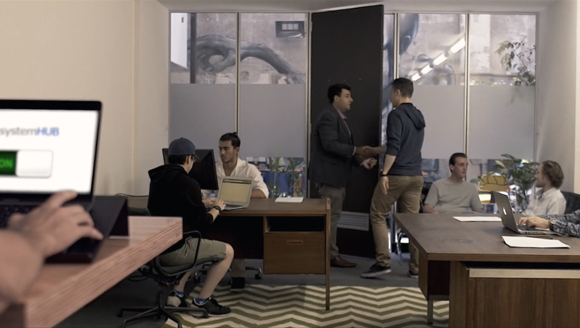
The SYSTEMology way: all systems centralised, searchable, and linked to accountability.
What to look for in systems management software
If Google Drive and Dropbox aren’t the right tools for managing your SOPs, what is? In SYSTEMology, I outline five criteria for choosing systems management software. These come from years of helping business owners systemise their businesses, and they’ve held up every time.
1. It must be dedicated systems management software
Not file storage. Not a wiki. Not a project management tool with a “docs” feature bolted on. You need a platform built specifically for creating, editing, and managing your business systems. Avoid platforms that require coding or HTML knowledge to use. If it has a steep learning curve, your team won’t adopt it.
2. Rich media support
Your SOPs aren’t just text documents. They include screenshots, videos, flowcharts, spreadsheets, and templates. The platform should let you embed these directly into the system documentation, not force you to link out to files stored somewhere else. Everything in one place. That’s the goal.
3. Permission levels by role
You need varying levels of access. Not every system is relevant to every team member. You should be able to assign systems to roles, and when someone joins or changes roles, their view updates accordingly. This keeps things focused and secure. It also makes onboarding dramatically faster.
4. Sign-off and compliance tracking
Team members should be able to read a system and confirm they understand it. This creates a clear audit trail and removes the “I didn’t know” excuse. It’s one of the most underrated features in systems management, and neither Google Drive nor Dropbox offers anything like it.
5. Intuitive and easy to use
This might be the most important criterion of all. Your systems management software needs to be usable by your entire team, not just the tech-savvy ones. If it requires training to navigate, people will avoid it. Unneeded features create complexity, complexity creates friction, and friction kills adoption.
Pro tip: Keep your systems management and project management as separate tools. Integrated solutions exist, but combining them typically introduces compromises and unnecessary complexity. Let each tool do what it does best.
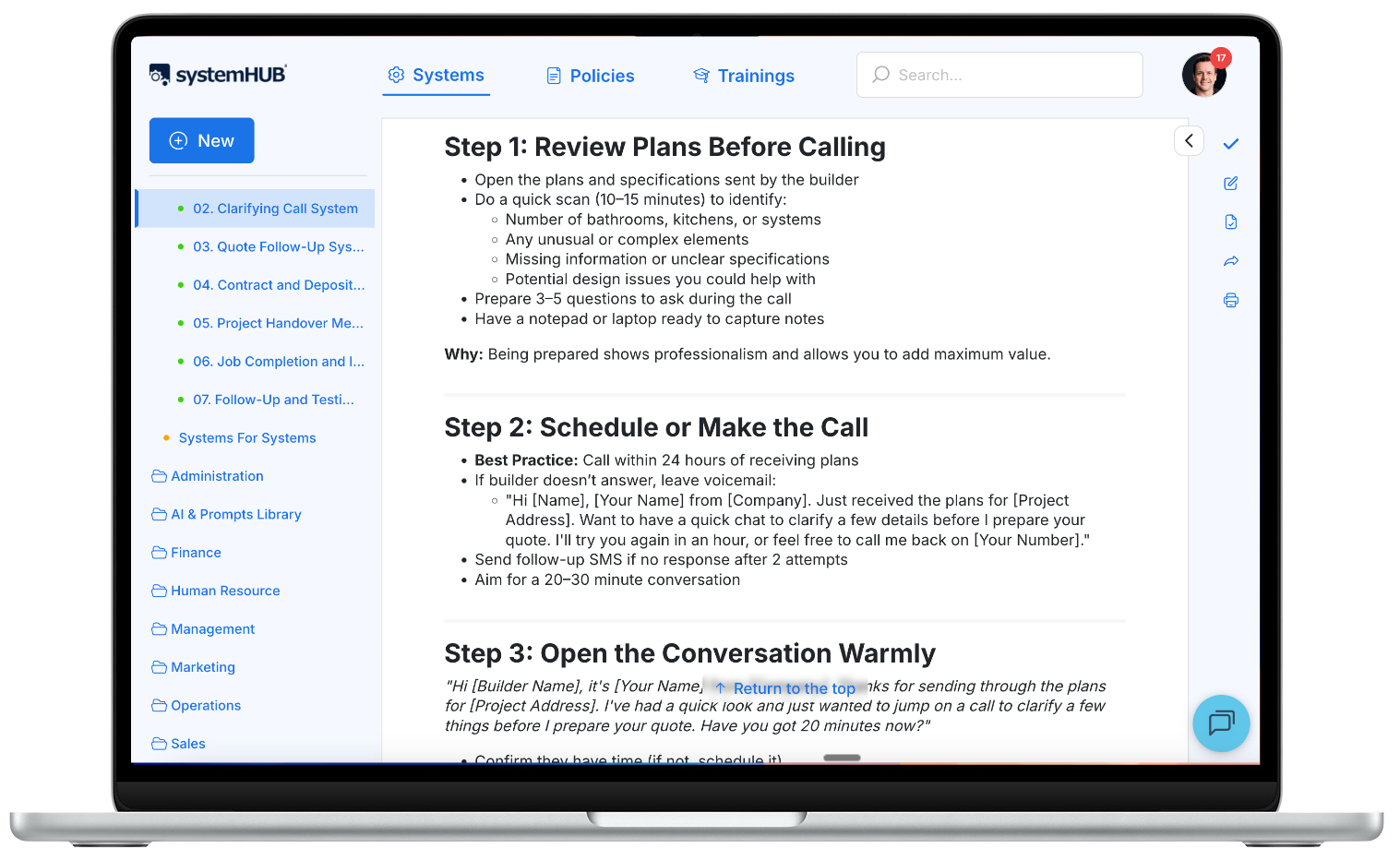
systemHUB is purpose-built systems management software with department folders, role-based permissions, and built-in sign-off tracking.
Stop storing your systems in folders nobody opens
systemHUB gives your team a central home for every process, with role-based access, sign-off tracking, and AI-powered documentation tools. See plans from $95/month.
When Google Drive or Dropbox still makes sense
I want to be clear: I’m not saying you should stop using Google Drive or Dropbox. Both are excellent tools for what they were designed to do. Your business still needs file storage for contracts, design files, spreadsheets, photos, presentations, and all the other documents that don’t fit neatly into a process.
The mistake is trying to make your file storage platform do double duty as your systems management platform. Those are two different jobs, and forcing one tool to do both means both jobs get done poorly.
Here’s how the best-run businesses I’ve worked with set things up.
1
Systems management
Your SOPs, policies, and training materials live in dedicated systems software like systemHUB.
2
Project management
Task assignments and accountability live in your project management tool (Asana, Monday, etc.).
3
File storage
Google Drive or Dropbox holds your documents, assets, and files that your SOPs reference.
In this setup, your systems management software links to files in Google Drive or Dropbox when needed. Your project management software links to the relevant SOP when assigning tasks. Everything has a clear home, and your team always knows where to look.
This is exactly what I describe as “the magic pair” in SYSTEMology, with file storage playing a supporting role. Three tools, each doing what it does best. No overlap, no confusion.
Common mistakes when choosing where to store your systems
Using file storage as your systems management platform. This is the most common mistake. Google Drive and Dropbox are built for storing files, not for organising, assigning, and tracking business systems. What starts as a tidy “SOPs” folder quickly becomes a dumping ground of outdated documents that nobody trusts or uses.
Scattering systems across multiple platforms. Some processes in Google Drive, some in Dropbox, a few in Notion, and a couple in email threads. If your systems are everywhere, they’re effectively nowhere. Your team needs one single source of truth for how things are done.
Choosing software based on features instead of adoption. The best systems management software isn’t the one with the most features. It’s the one your team will actually use. Fancy automation workflows and process mining tools sound impressive, but if your team can’t figure out the basics without training, you’ve chosen the wrong tool.
Trying to automate before documenting. Business owners love efficiency. So when they hear “automation,” they want to jump straight there. But you can’t automate what you haven’t documented. Get the process right manually first. Then automate. This is how Google does it, and it’s how the smartest businesses I work with approach it too.
Skipping sign-off and accountability. Creating beautiful SOPs is only half the job. If there’s no mechanism to ensure your team has read and understood them, you’ll still get the “I didn’t know” excuse. Any systems management platform worth using should include sign-off tracking as a core feature.
Frequently asked questions
Is Google Drive or Dropbox better for business?
It depends on your needs. Google Drive is better if your team relies heavily on real-time collaboration and already uses Google Workspace. Dropbox is stronger for offline file syncing and works well with mixed tool ecosystems. For general file storage, both are excellent. But if you’re looking for a place to store and manage your business processes, neither is ideal. You need dedicated systems management software.
Can I use Google Drive to store my SOPs?
You can, but it’s not recommended as your primary SOP management tool. Google Drive works for creating and sharing documents, but it lacks the structure, role assignment, sign-off tracking, and organisation that effective SOP management requires. Most businesses that try this end up with a messy folder of outdated documents that nobody uses.
What is the best software for storing business processes?
Look for dedicated systems management software rather than repurposing file storage or project management tools. The best platforms let you organise processes by department, assign them to roles, embed rich media, and track sign-off. systemHUB, Trainual, and SweetProcess are examples of purpose-built platforms designed for small to mid-sized businesses.
Should I use Google Drive or Dropbox for team collaboration?
For document collaboration, Google Drive is generally stronger thanks to real-time editing in Google Docs, Sheets, and Slides. Dropbox is better for file sharing and syncing, especially when working with large files or non-Google file formats. Many teams use both: Google for collaborative documents and Dropbox for file storage and sharing.
What is systems management software?
Systems management software is a platform purpose-built for creating, organising, and managing your business’s process documentation. It’s the central location where all your SOPs, policies, and training materials live so your team can find and follow them. Unlike file storage tools like Google Drive or Dropbox, systems management software includes role-based access, sign-off tracking, and department-level organisation.
Can I use Dropbox for standard operating procedures?
Dropbox can store SOP documents, but it lacks the features needed to manage them effectively. You won’t be able to assign processes to specific roles, track who has read and acknowledged them, or organise them by department in a way that scales. It works as a temporary solution for a small team, but you’ll outgrow it quickly as your business systems grow.
What is the difference between file storage and SOP software?
File storage (Google Drive, Dropbox, SharePoint) stores any type of file in folders. SOP software (systemHUB, Trainual) is specifically designed to create, organise, and manage business processes and procedures. SOP software adds structure that file storage doesn’t: department-level organisation, role-based permissions, rich media embedding, sign-off tracking, and compliance features. Think of it as the difference between a filing cabinet and a training manual.
How do I organise my business systems?
Start by identifying your core departments (sales, marketing, operations, finance, HR, management) and creating a folder or category for each. Within each department, document the critical systems that drive your business. Focus on the 10 to 15 most important processes first, not everything at once. Use dedicated systems management software to keep everything centralised, and link your SOPs to your project management tool for accountability. For a full framework, check out the SYSTEMology approach to systemising your business.
Your systems are the most valuable asset in your business. Store them somewhere purpose-built.
Google Drive and Dropbox are great file storage tools. But your business processes deserve better than a shared folder. If you’re serious about building a business that runs without you, start by giving your systems a proper home. See how systemHUB works.